GreasyBoii
The web the way you want it. Point at a site, write the CSS or JavaScript you wish it shipped with, and GreasyBoii applies it every time you visit. No script headers to learn, no account, no server, no telemetry: a rule is a form in a popup and that is the whole ceremony.
- Browser extension
- Chrome
- Firefox
- User scripts
- Page tools
Role:
Sole designer & engineer
Platform:
Chrome (Manifest V3), Firefox (Manifest V2)
Status:
Version 2.0.1, open source
What it is
Every site has something you would fix if you could: a cookie banner that comes back on every page, a diff view squeezed into a narrow column, a "load more" button that needs clicking twelve times, a light theme with no dark option, a word you would rather read differently. Greasemonkey and Tampermonkey solved this in 2005 with user scripts, but they ask you to write a script file with a metadata header, learn a matching grammar and manage everything in a separate dashboard tab.
GreasyBoii takes the same idea and puts it behind a single popup. A rule is a name, a matching condition and the code you want to run. Matching is a substring of the URL, the presence of an element on the page, both, or simply every page. The code can be CSS, JavaScript, or neither: the advanced fields let a rule click an element for you, replace text across the page, and keep re-checking on single-page apps where the URL changes without a reload. A second tab holds one-off tools for the page you are looking at: download every image, pull out every link, scrape a column of values to CSV.
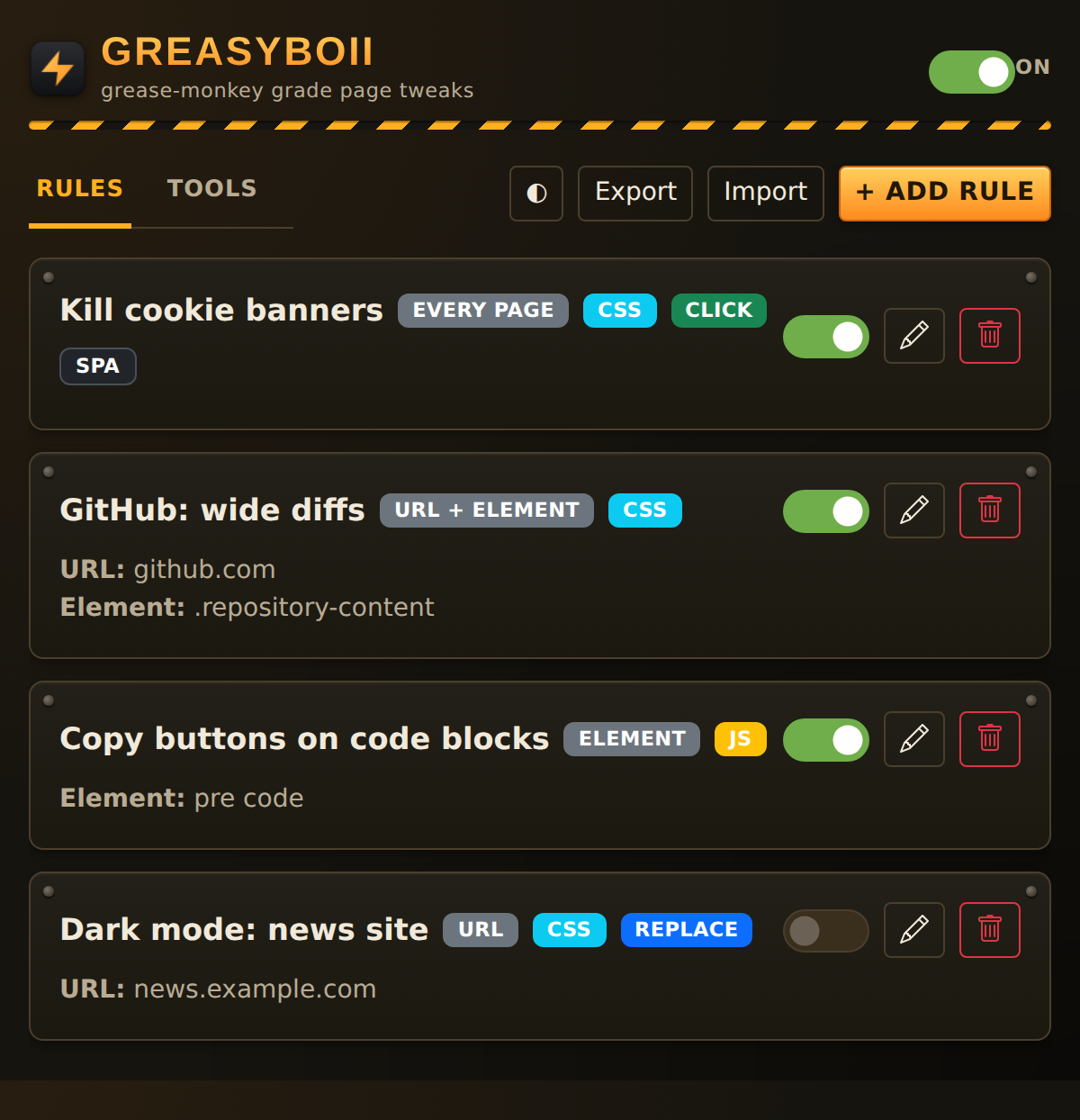
It runs on Chrome and any Chromium browser (Edge, Brave, Opera, Vivaldi) as a Manifest V3 extension, and on Firefox as a Manifest V2 add-on. The two are maintained as parallel implementations with the same UI and the same rule format, so a rule set exported from one imports cleanly into the other.
Anatomy of a rule
Click Add Rule and you get one form. Everything above the Advanced section is what most rules need; everything inside it is optional.
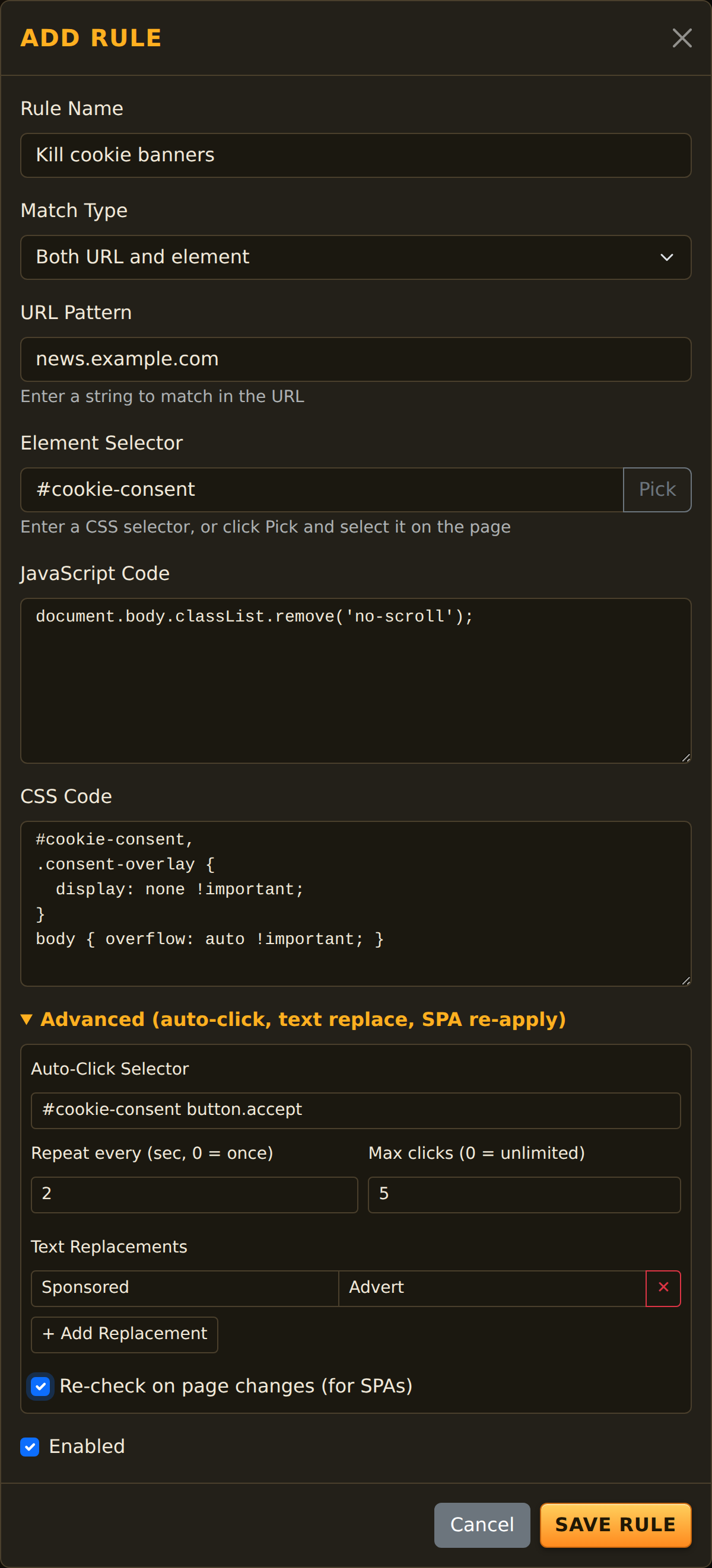
Rule name
Whatever you like. It is the label on the card, the tag on the injected style element and the prefix in the browser console when the rule fires, so make it something you will recognise in a log.
Match type
Four options: the URL contains a string, the page contains an element, both at once, or run on every page. The next section covers exactly how each is evaluated.
URL pattern
A plain substring tested against the full address, including protocol, path and query string. Not a glob, not a regular expression. github.com matches every GitHub page; /pull/ matches only pull requests; ?q= matches search results on most sites.
Element selector
Any CSS selector the browser accepts. Type it, or click Pick and choose the element on the page. A rule with element matching only fires when at least one element matches, which makes it a cheap way to say "only on pages that have a video player" without knowing the URL.
JavaScript
Runs in the page's own world with full access to its DOM and globals, not in the extension's isolated sandbox. On Chrome it is executed through the scripting API from the background worker, which is what lets it run on sites whose Content Security Policy would block an injected script tag. On Firefox it is evaluated into the page context directly.
CSS
Appended to the document head as a style element tagged with the rule's name. Re-running the rule replaces the old style rather than stacking a second copy. Site styles often win on specificity, so reach for !important more than you normally would.
Auto-click
A selector to click when the rule matches. Leave the interval at zero to click once; set it to a number of seconds to keep clicking, and cap it with a maximum. "Load more" buttons, recurring banners and "show full article" links all fall to this.
Text replacements
Find and replace pairs applied to every visible text node on the page. Script and style contents are skipped, so it cannot break the page's own code, and it never touches attributes or URLs.
Re-check on page changes
Single-page applications change the URL and rebuild the DOM without ever reloading, so a rule that only ran at load would fire once and then go stale. Tick this and GreasyBoii watches the document with a MutationObserver and re-evaluates the rule's condition, debounced to 400 milliseconds, every time the page changes. Rules are edge-triggered: they fire when the condition goes from false to true, not on every mutation, so a rule that matches continuously runs once, and a banner that is removed and reinserted triggers again.
How matching works, precisely
The content script loads on every page once the document is idle and does one thing first: reads the master switch. If GreasyBoii is off, it stops there. Otherwise it reads your rules and evaluates each enabled one, in order, against the current page.
URL contains string
True when location.href includes the pattern anywhere. Case-sensitive. An empty pattern matches every page, which is why "Run on every page" exists as its own honest option.
Page contains element
True when document.querySelectorAll(selector) returns at least one element at the moment of evaluation. The console log tells you how many were found, which is a quick sanity check on your selector.
Both URL and element
The URL test runs first and short-circuits; the element test only runs if it passes. Use this to keep an element-based rule from firing on sites that happen to use the same class names.
Run on every page
Unconditional. For the things you want everywhere: a scroll progress bar, a keyboard shortcut, a font size floor, or a cookie banner rule broad enough to catch most consent frameworks.
When a rule matches, its actions run in a fixed order: JavaScript, then CSS, then auto-click, then text replacements. That order is deliberate. Your script gets a chance to change the DOM before the style lands, the click happens against the styled page, and the text pass runs last so it sees whatever the script and the click produced.
Content scripts are excluded from frames, so a rule sees the top-level document only. Advertising and consent iframes are outside its reach by design, though hiding the frame element itself with CSS is usually enough.
The element picker
Writing a selector by hand means opening the inspector, finding the element, working out which of its classes are stable and typing the result. The picker collapses that into a click. Press Pick next to the Element Selector field, and the page gets an orange banner along the top. Move the mouse and whatever is under it is outlined; click, and the selector is captured. Press Escape to cancel.
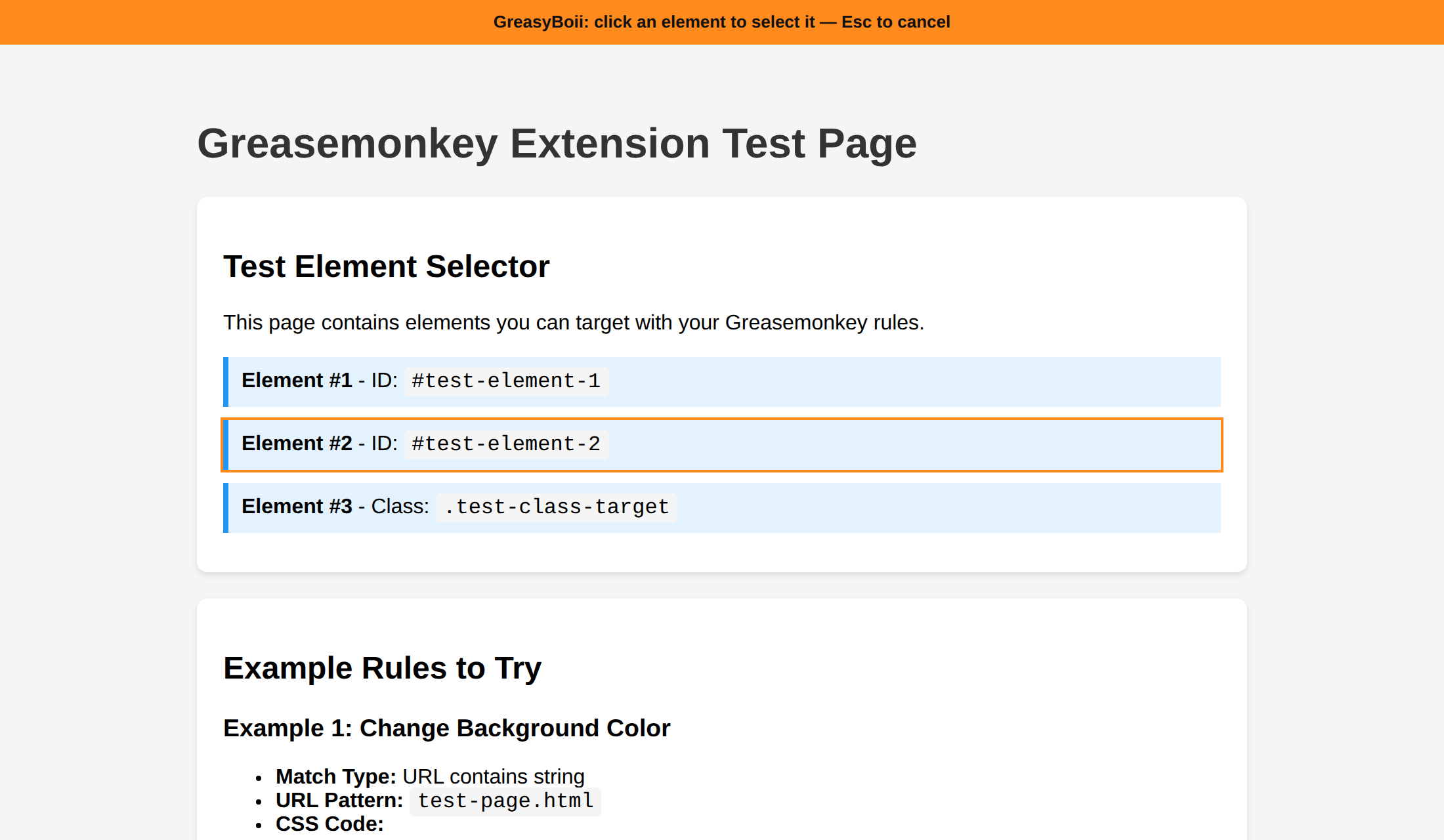
The selector it produces is computed to be unique on the page without being brittle. If the element has an id that appears once, you get the id. Otherwise it walks up to four ancestors, building a path from each one's tag name, its first class that contains no digits (hashed and numbered class names come from build tools and change on every deploy), or failing that its position among same-tag siblings, and stops as soon as the path matches exactly one element.
One quirk worth knowing: the popup closes the moment you click the page, because that is how browser popups work. GreasyBoii saves a snapshot of the half-written rule before it hands over to the picker, stashes the selector once you click, and restores both the next time you open the popup, with the editor reopened and the field filled in. It feels like the popup never went away.
Before and after
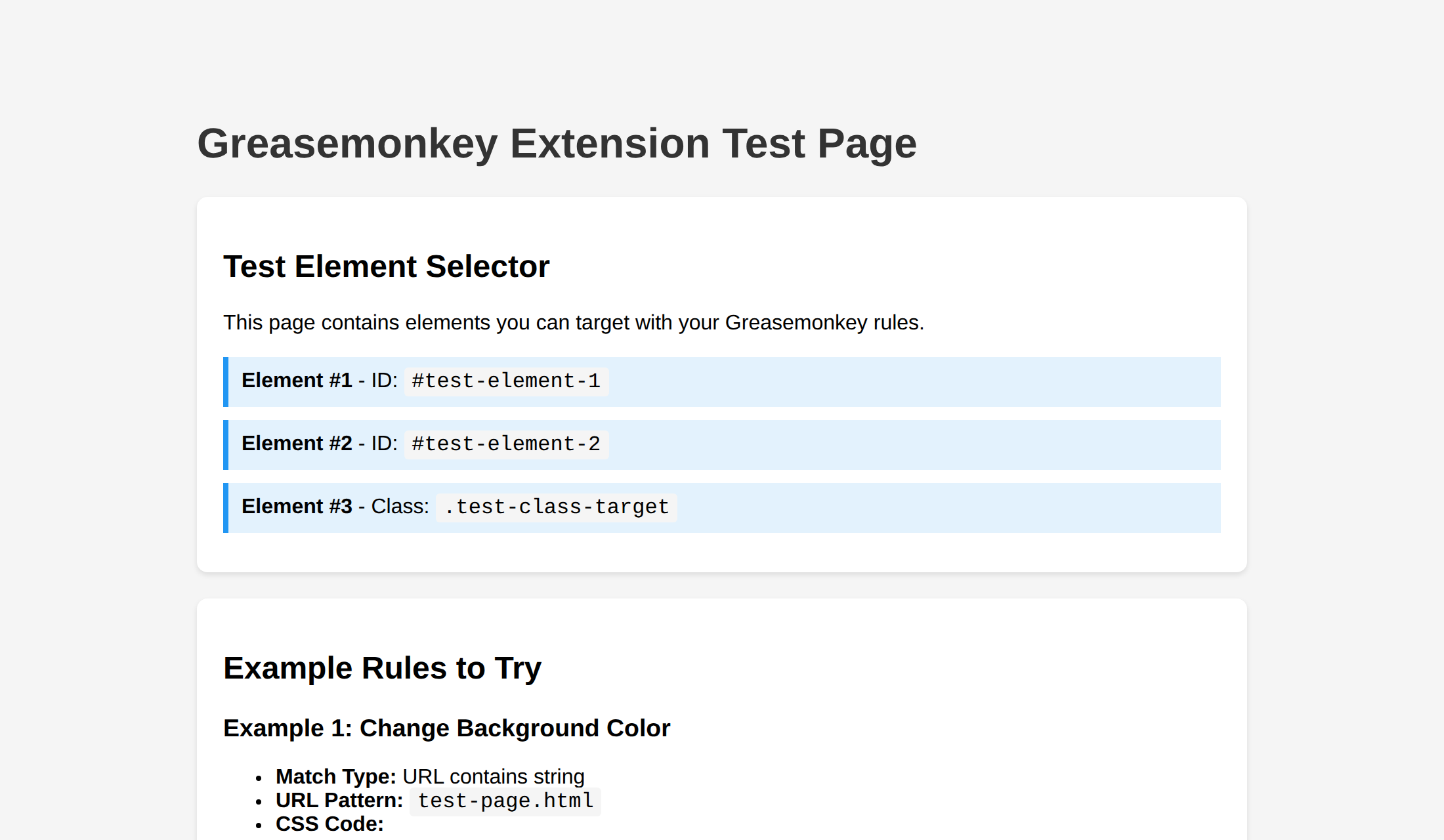
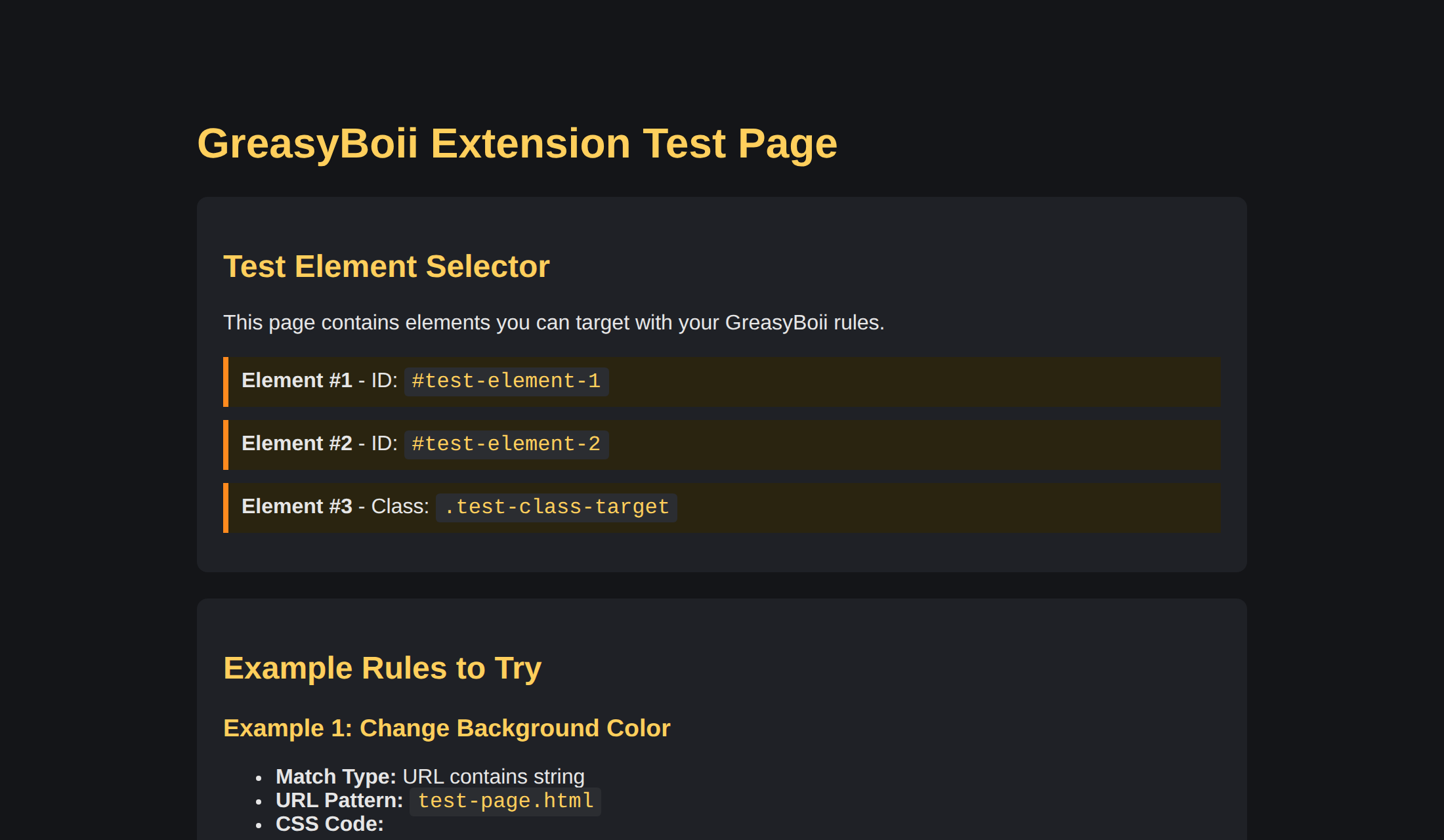
One rule on the bundled test page: a dark palette in the CSS field and a single text replacement that renames the page. The match type is "URL contains string" with the pattern test-page.
body { background: #141518 !important; color: #e6e6e6 !important; }
.test-section { background: #1f2126 !important; box-shadow: none !important; }
h1, h2, h3 { color: #ffcf5c !important; }
.test-element { background: #2a2410 !important; border-left-color: #ff8a1e !important; }
code { background: #2b2d31 !important; color: #ffcf5c !important; }
Text replacement: find Greasemonkey, replace with GreasyBoii. Reload, and the page has changed its mind.
The Tools tab
Rules are for things you want every time. The Tools tab is for the page in front of you right now. Nothing here is saved; each tool asks the current tab a question and shows you the answer.
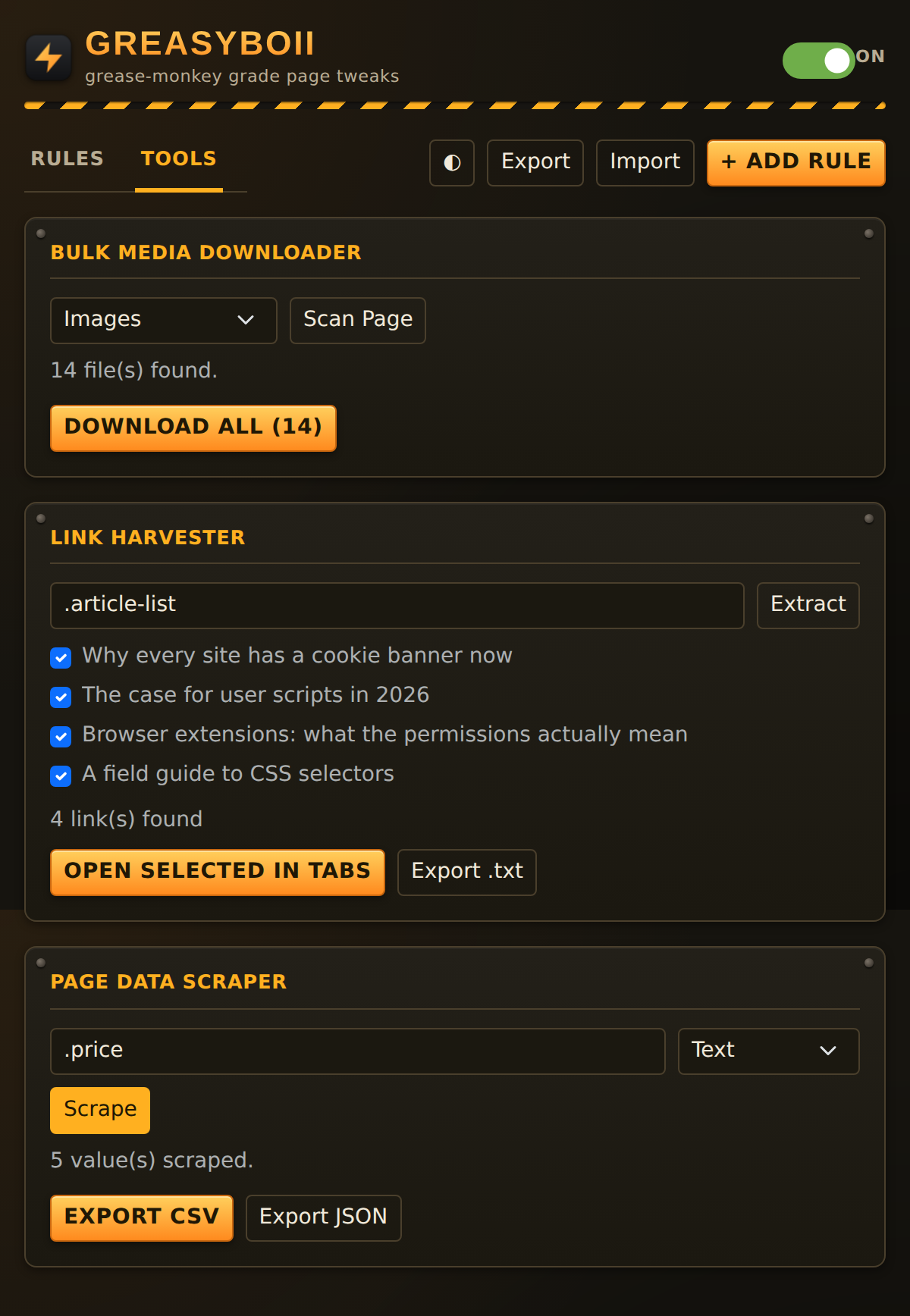
Bulk media downloader
Choose images, PDFs, videos or your own list of extensions, scan, and download everything found in one click through the browser's normal download manager. For images it collects every img source on the page; for the other types it collects links whose file extension matches. Downloads use the site's cookies, so images behind a login work as long as you can see them. A gallery of 140 product photos becomes one button.
Link harvester
Pull every link out of the page, or only the links inside a container you name (.article-list, #results, main). Duplicates are removed and each link shows its text so you can tick the ones you want. Then either open the ticked links in background tabs, or export the whole list as a text file. Search results, an index page, a thread of references: all of it opened or saved without a single middle-click.
Page data scraper
Give it a selector and say what you want from each match: the text, the href, the src, or any attribute by name. Every matching element contributes one value and the result exports as CSV or JSON. .price with Text gives you a column of prices. table tr td:nth-child(2) gives you the second column of a table. img with src gives you every image address. It is the fastest route from "I can see the data" to "I have the data in a file".
ChatGPT conversation export
A panel that appears only when the current tab is a ChatGPT conversation. It reads the messages on screen, converts them to Markdown with headings per speaker, code fences preserved and links kept, fetches any images in the thread and saves the lot as a Markdown file with an images folder beside it. Your own conversation, on your own disk, in a format that will still open in twenty years.
The header buttons
One-click dark mode
The half-moon button adds a ready-made dark-mode rule for whichever site you are on, matched to its hostname. It is a starting point, not a finished theme: open the rule and adjust the colours if the site fights back.
Export and import
Your whole rule set as a JSON file, and back again. Back it up, move it between Chrome and Firefox, or send a rule to someone else. Import replaces the current set, so export first if you want to merge by hand.
Master switch
The toggle at the top right, or Ctrl+Shift+G (Cmd+Shift+G on a Mac), turns every rule off at once. The toolbar icon shows a red OFF badge while it is disabled. Reload the page to see it take effect. This is the first thing to reach for when a site misbehaves and you want to know whether it was you.
Per-rule toggles
Each card has its own switch. A disabled rule keeps its code and its place in the list, so you can park a rule while a site is mid-redesign and bring it back later.
Worked examples
A dozen rules that earn their keep. Each is a complete rule you can type in as shown; adjust the selectors to the site in front of you. The GitHub repository's EXAMPLES file has more.
1. Kill cookie banners everywhere
The broad version: hide anything whose class or id mentions cookies or consent, and restore scrolling on sites that lock the page behind the overlay. Add an auto-click selector of button[id*="accept"], button[class*="accept"] with re-check enabled if a site insists on an answer before it will load content.
- Match type
- Run on every page
CSS
[class*="cookie"], [id*="cookie"],
[class*="consent"], [id*="consent"],
[id*="gdpr"], .privacy-banner {
  display: none !important;
}
body, html {
  overflow: auto !important;
}
2. Wider diffs on GitHub
Pull requests on a wide monitor with a column of empty space either side. The element test keeps this from matching GitHub pages that use a different layout.
- Match type
- Both URL and element
- URL pattern
github.com- Element selector
.repository-content
CSS
.repository-content,
.container-xl {
  max-width: 1600px !important;
}
3. Copy buttons on every code block
Documentation sites that forgot the copy button. Because it matches on the element rather than the URL, it works on every site that has code blocks, and stays out of the way on the ones that do not.
- Match type
- Page contains element
- Element selector
pre code
JavaScript
document.querySelectorAll('pre code').forEach(block => {
  const btn = document.createElement('button');
  btn.textContent = 'Copy';
  btn.style.cssText = 'position:absolute;top:6px;right:6px;padding:4px 10px;cursor:pointer;font:12px sans-serif;';
  btn.onclick = () => {
    navigator.clipboard.writeText(block.textContent);
    btn.textContent = 'Copied';
    setTimeout(() => btn.textContent = 'Copy', 1500);
  };
  block.parentElement.style.position = 'relative';
  block.parentElement.appendChild(btn);
});
4. Reading mode for any article
Strip a news site to its article. The pattern /article/ catches many publishers; swap in whatever the site uses, or match on article as an element instead.
- Match type
- URL contains string
- URL pattern
/article/
CSS
body > *:not(main):not(article) { display: none !important; }
main, article {
  max-width: 760px !important;
  margin: 40px auto !important;
  padding: 0 24px !important;
  font-size: 19px !important;
  line-height: 1.7 !important;
}
aside, .sidebar, .related, .newsletter, [class*="promo"] {
  display: none !important;
}
5. Click "load more" until it is gone
No code at all: set the auto-click selector to button.load-more, repeat every 2 seconds, maximum 25 clicks. The rule keeps pressing the button while it exists and stops at the cap. Turn on re-check for feeds that replace the button after each page.
- Match type
- Both URL and element
- URL pattern
example.com/feed- Element selector
button.load-more
6. Honest labels
Text replacements only. Find Sponsored, replace with Advert. Find Recommended for you, replace with Paid placement. The page keeps working; it just stops being coy.
- Match type
- Run on every page
7. A rule that survives a single-page app
Tick "Re-check on page changes". Every time the app re-renders and a toast appears, the condition flips from false to true and the rule fires again. Without the tick it would fire once at load and never again.
- Match type
- Both URL and element
- URL pattern
app.example.com- Element selector
.notification-toast
JavaScript
document.querySelectorAll('.notification-toast').forEach(t => t.remove());8. Keyboard shortcuts a site never gave you
Slash to search, j and k to scroll. The same three lines work on almost any documentation site.
- Match type
- URL contains string
- URL pattern
docs.example.com
JavaScript
document.addEventListener('keydown', e => {
  if (e.key === '/' && document.activeElement.tagName !== 'INPUT') {
    e.preventDefault();
    document.querySelector('input[type="search"]')?.focus();
  }
  if (e.key === 'j') window.scrollBy({ top: 400, behavior: 'smooth' });
  if (e.key === 'k') window.scrollBy({ top: -400, behavior: 'smooth' });
});
9. Scroll progress bar
Three pixels of orange along the top that tell you how far through the page you are. Harmless everywhere, useful on long reads.
- Match type
- Run on every page
JavaScript
const bar = document.createElement('div');
bar.style.cssText = 'position:fixed;top:0;left:0;height:3px;width:0;background:#ff8a1e;z-index:2147483647;transition:width .1s;';
document.body.appendChild(bar);
addEventListener('scroll', () => {
  const max = document.documentElement.scrollHeight - innerHeight;
  bar.style.width = (100 * scrollY / max) + '%';
}, { passive: true });
10. Expand everything that is collapsed
FAQ pages and changelogs that hide every answer behind a click. This opens all of them so the browser's find-in-page works across the whole document.
- Match type
- Page contains element
- Element selector
details:not([open]), .collapsed
JavaScript
document.querySelectorAll('details').forEach(d => d.open = true);
document.querySelectorAll('.collapsed').forEach(el => {
  el.classList.remove('collapsed');
  el.style.display = 'block';
});
11. Font size floor
Nothing smaller than sixteen pixels, anywhere. The max() keeps larger text alone and only lifts the tiny stuff.
- Match type
- Run on every page
CSS
body, p, li, td, input, textarea {
  font-size: max(1em, 16px) !important;
}
12. Prices to a spreadsheet, no rule needed
Open the Tools tab on a product listing. Scraper selector .product-title, attribute Text, Scrape, Export CSV. Then .price, Text, Scrape, Export CSV. Two files, two columns, paste side by side. Thirty seconds, and the site never knew.
- Match type
Storage, sync and the rule format
Rules live in the browser's extension sync storage under a single rules key, with the master switch stored separately as masterEnabled. If you are signed in to Chrome or Firefox with sync on, your rules follow you between your own devices through the browser vendor's own sync; if not, they stay on the one machine. Either way nothing goes to me: GreasyBoii has no server.
{
  "rules": [
    {
      "name": "Kill cookie banners",
      "matchType": "all",
      "urlPattern": "",
      "elementSelector": "",
      "javascript": "",
      "css": "[class*=\"cookie\"] { display: none !important; }",
      "enabled": true,
      "autoClickSelector": "button[id*=\"accept\"]",
      "autoClickIntervalSec": 2,
      "autoClickMax": 5,
      "reapplyOnDomChanges": true,
      "textReplacements": [{ "find": "Sponsored", "replace": "Advert" }]
    }
  ]
}
That is also the export format, so a rules file is readable, diffable and easy to hand-edit. matchType is one of url, element, both or all; the advanced fields are optional and default to off.
One limit to know about: both browsers cap a single sync storage item at around eight kilobytes, and the whole rule set is one item. A few dozen ordinary rules fit comfortably; a rule carrying a very large script may not. If a save fails, export your rules, trim the biggest one, and consider hosting a long script somewhere and loading it from a short rule.
Under the hood
Three scripts and a popup, no build step, no framework, no dependencies beyond a vendored copy of Bootstrap for the popup's styling.
content.js
Injected into every top-level page at document idle. Evaluates rules, injects CSS, runs auto-click timers and text replacements, watches for DOM changes when asked, and answers the popup's requests for the picker and the tools.
background.js
On Chrome, a service worker that executes rule JavaScript in the page's main world via the scripting API, relays the picker result through local storage, handles the keyboard shortcut and keeps the toolbar badge in step with the master switch. On Firefox, a persistent background script doing the same minus the scripting relay.
popup.js
The rule editor and tools. Renders every list by building DOM nodes rather than parsing HTML strings, which is why a rule name containing quotes or angle brackets, or a crafted import file, cannot inject markup into the popup. That was a real fix in 2.0, flagged by Mozilla's add-on linter and confirmed as exploitable through import.
Two implementations
The Chrome and Firefox directories are complete extensions in their own right, maintained side by side rather than generated from one source. The rule format, the UI and the behaviour are identical; the differences are Manifest V3 versus V2, the API namespace, and how JavaScript reaches the page context on each platform.
Permissions, and what each one is for
- Access to all sites: so the content script can check whether any rule matches. On pages where nothing matches it does nothing.
- Storage: your rules and the master switch.
- Active tab and scripting: to inject rule code into the matching tab and to run the picker.
- Downloads: the bulk downloader, the link export, the scraper export and rule export all save files through the browser.
No permission is used for anything beyond the feature it names, the extension makes no network requests of its own, and the only traffic it ever causes is what your rules and downloads ask for. The full statement is on the privacy policy.
When a rule does not fire
Open the console
Every decision is logged with a [GreasyBoii] prefix: how many rules were loaded, which one triggered, how many elements the selector found, and any error from your code. Press F12 on the page and filter on the prefix.
Reload after editing
Rules are evaluated when a page loads. Saving a rule does not re-run it on tabs that are already open; reload the tab.
CSS not sticking
The site's own stylesheet is winning. Add !important, or make the selector more specific. Check the selector matches by running it in the console with document.querySelectorAll.
Element rule never matches
The element probably arrives after the page has loaded. Turn on "Re-check on page changes" so the rule is re-evaluated when the element appears.
JavaScript blocked
On Chrome, rule scripts bypass the page's Content Security Policy by running through the scripting API. On Firefox a very strict policy can still block injection; the console will say so.
Nothing works at all
Check the toolbar icon. A red OFF badge means the master switch is off; Ctrl+Shift+G brings it back.
Get it
GreasyBoii is open source. Install it from the Chrome Web Store or Firefox Add-ons, or load it unpacked from the repository: on Chrome, open chrome://extensions, enable developer mode and load the chrome directory; on Firefox, open about:debugging and load the firefox directory's manifest as a temporary add-on. The repository includes a test page with elements to practise on and a library of example rules.